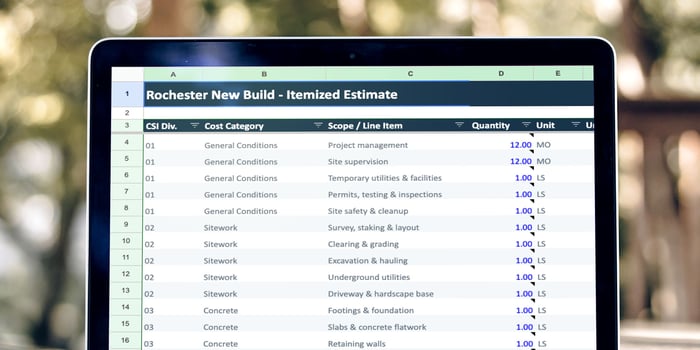
A construction estimate helps you turn project scope into a working budget. Before work begins, it brings expected costs into focus so your team can prepare bids, plan resources, and evaluate whether the job is financially viable.
For contractors who estimate in Excel or Google Sheets, a well-organized spreadsheet can provide a practical, low-cost starting point. Reusable templates help standardize estimates, while built-in formulas reduce repetitive calculations. But outdated costs, overwritten formulas, and inconsistent data entry can make even a familiar spreadsheet difficult to trust.
The following seven improvements can help you organize estimate details, reduce common spreadsheet errors, and make your estimates easier to review and update. You’ll also find free construction estimate templates to help you put these practices to work.
7 Improvements to Make in Your Estimate Spreadsheet(s)
Creating construction estimates with spreadsheets involves a large amount of manual data entry, and it doesn't take much—a single mistyped cell, a broken formula reference—to skew your project totals.
Here are 7 improvements and best practices you can implement in your construction estimate spreadsheet for increased accuracy, better readability, and easier manageability. (All screenshots are from ConstructionOnline’s free estimate templates package, that can be downloaded here):
1. Use built-in formulas for all calculations
Formulas are one of the most basic functions of spreadsheets, letting you automatically calculate totals from specific cell data instead of entering them by hand. This reduces the likelihood of human errors when calculating project totals.
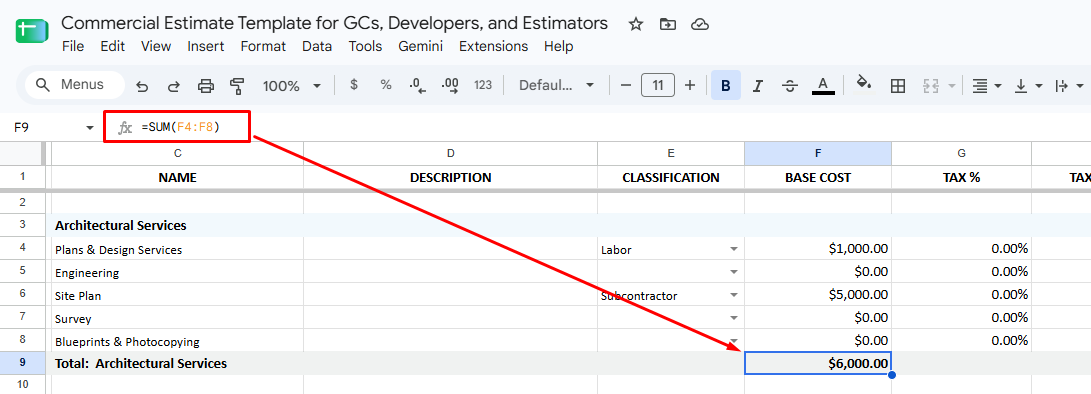
Screenshot taken from ConstructionOnline’s free construction estimate template.
There will inevitably be some fields that require manual data entry, but it's best practice to create formulas for any cell that requires any sort of calculation; this includes addition (+), subtraction (-), multiplication (*), division, or exponents (^). There are over 500 built-in functions available in Google Sheets and Microsoft Excel, but here are a few essential functions you should know:
|
Function |
Purpose & Relevance to Construction Estimates |
Example |
|
|
=SUM |
|
=SUM(A1:A10) |
|
|
=AVERAGE |
|
=AVERAGE(A1:A10) |
|
|
=COUNT |
|
=COUNT(A1:A10) |
|
|
=IF |
|
=IF(A1>100, “High”, “Low”) |
|
|
=XLOOKUP |
Searches for a value in a range or array and returns a matching result. Relevant for pulling pricing for a specific material code, finding labor rates for a specific trade, matching subcontractor bids, or automatically identifying missing data. |
=XLOOKUP (A2, CostCodes!A:A, CostCodes!B:B) |
|
|
=ROUND |
Changes a number to a specific level of precision by rounding it up or down. Relevant for rounding quantity counts, unit costs, pricing totals, and more. |
=ROUND(A1, [Places]) |
2. Include a Project Totals sheet and manage categories and subcategories in separate sheets
Trying to fit all categories, subcategories, overhead, margin, and allowances into a single sheet can be overwhelming and harder to manage. It’s better to segment relevant data into different sheets within the same spreadsheet / workbook (depending on if you’re using Excel or Google Sheets) and include all of those calculations into a central Project Totals sheet. Otherwise, you’ll be forced to scroll through hundreds or thousands of rows when making edits and gathering information.
For instance, say your estimate includes a category called “Planning” which includes subcategories like architectural services, engineering services, permits, consulting, and other related estimate items. You can create a Planning category in a separate sheet using the “Add sheet” button at the bottom and include a cost breakdown of the aforementioned subcategories. The sum of those subcategories can then be aggregated into the Project Totals sheet.
This approach pays off most on complex estimates with several categories and subcategories. A simple estimate for a small job may not need this level of segmentation—a single, well-organized sheet can work fine in those instances.
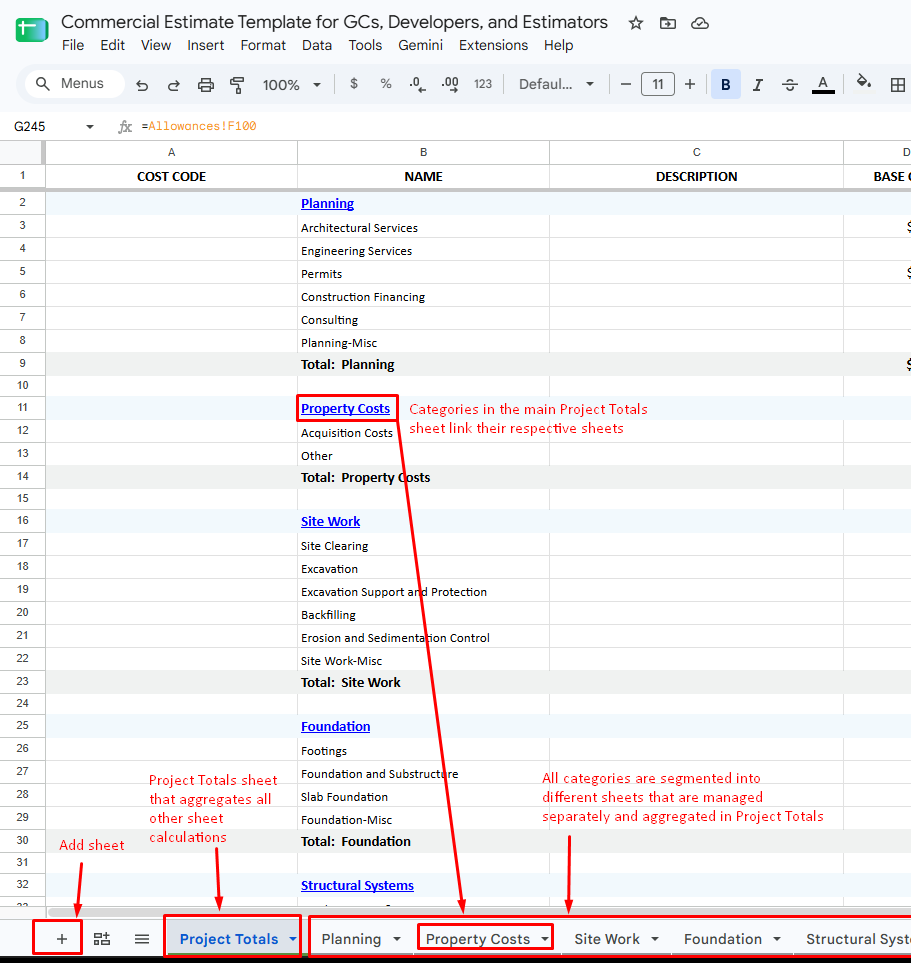 Screenshot taken from ConstructionOnline’s free construction estimate template using Google Sheets.
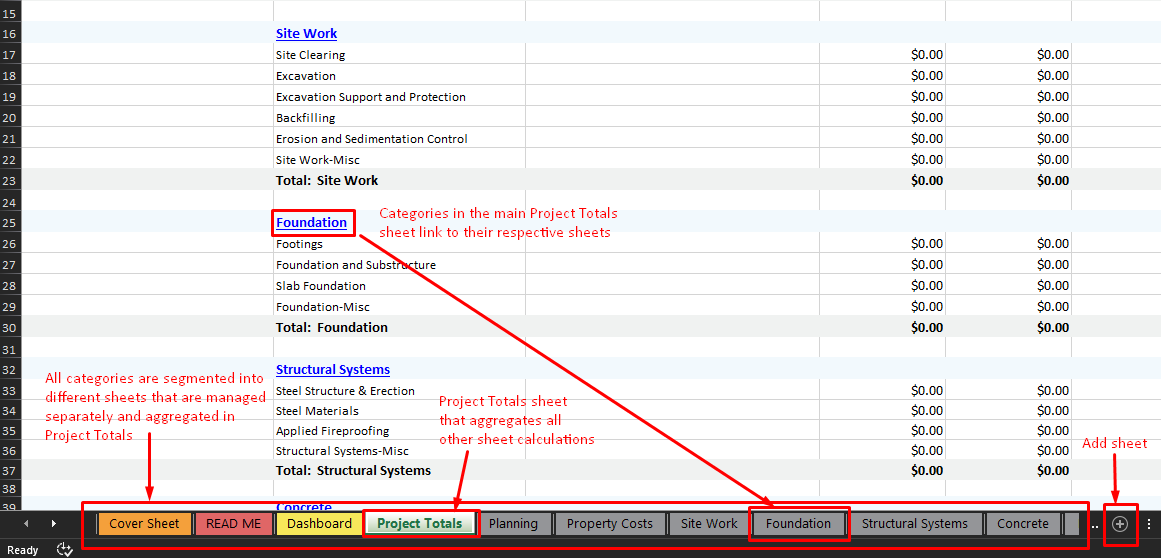
Screenshot taken from ConstructionOnline’s free construction estimate template using Microsoft Excel.
3. Include allowances and overages in calculations
Allowances are set amounts of money included in a project plan (often for customizable items and selections like flooring or cabinetry) while an overage is any amount that goes past that preset allowance limit. It’s important to include allowances and overages in your estimate calculations so there are no surprise costs later on.
Because your list of allowances could be considered a separate category of expenses, it’s best practice to create a separate sheet of allowances that can be managed apart from everything else, and then calculate the allowances total into the Project Totals sheet.
4. Protect/lock cells with formulas to minimize data entry errors
Cells with built-in formulas are meant to be automatically calculated from cells with manually entered data. Ideally, formula cells should only be edited by those who have the permissions and spreadsheet knowledge to do so.
Use the “Protect range” function in Google sheets or the
“Protection - Lock cell” function in Microsoft Excel to effectively lock certain cells from being edited without good reason. To do this, right click on the selected cell range you want to protect, hover over “View more cell actions”, and choose “Protect range.” Then, select the “Change permissions” button in the pop-up window on the right. Then you will be given the option to either restrict who can edit the specified cell ranges or you show a warning when editing the range so the user knows there are potential consequences to editing the data.
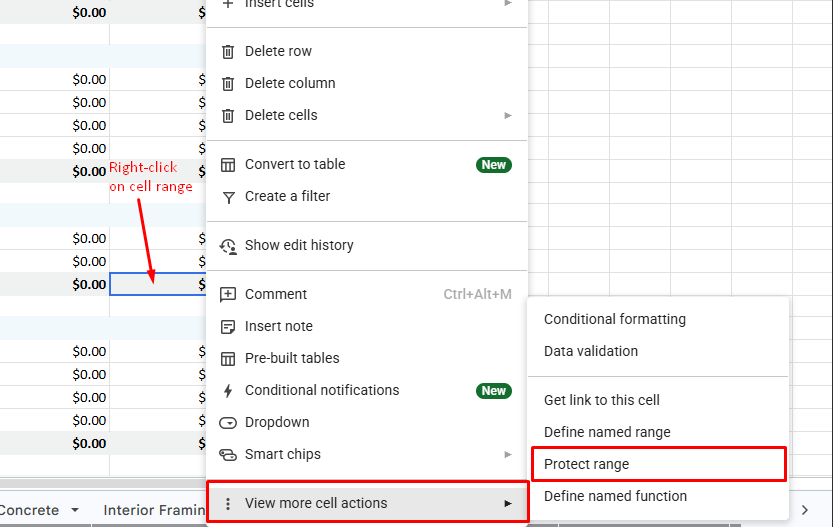
In Google Sheets, right click on a selected cell range you want to protect. In the pop-up menu, hover over “View more cell actions” then select “Protect range.”
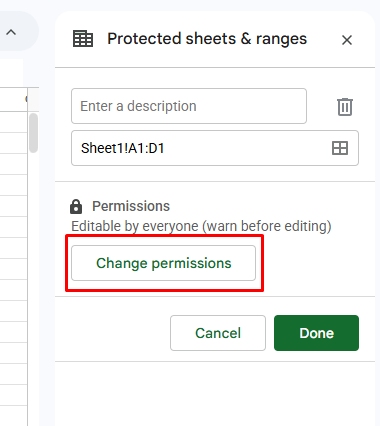
In Google Sheets, in the pop-up menu that should appear on the right, select “Change permissions.”
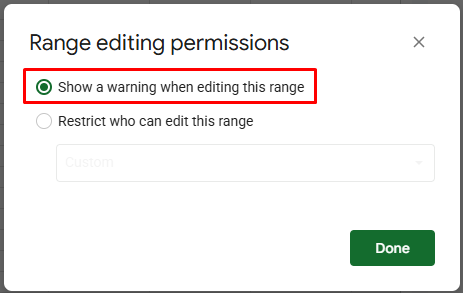
In Google Sheets, there are two options to select: “Show a warning when editing this range,” or “Restrict who can edit this range.” We recommend selecting the first option that will show a warning message.
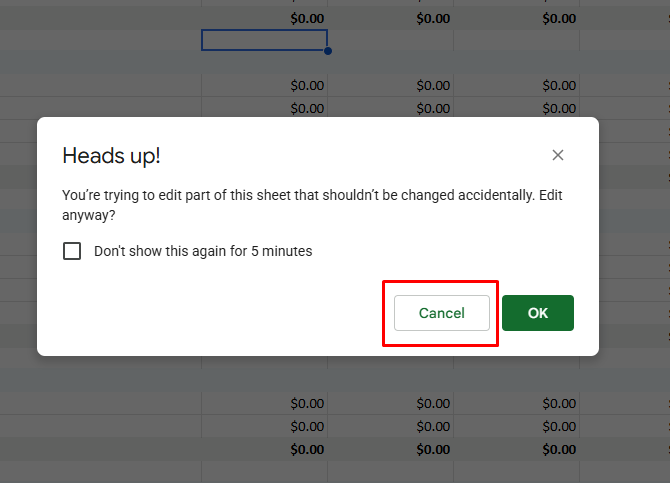
In Google Sheets, if you select the first option, a warning pop-up will appear every time someone attempts to edit a protected cell. You can select “Cancel” to undo any edits you attempted to make.
5. Color code and bold relevant cells and text to visually differentiate data
Visually differentiating data fields and types is important for clarity when you’re dealing with a large amount of estimate data. The tabular structure of spreadsheets does the bulk of the structuring and formatting work, but using the “Fill color” and “Bold” properties for cell backgrounds and text styles adds an extra layer of readability.
Highlight important labels like row and column headers, total costs, category labels, and more relevant fields to organize data and make editing and gathering information simpler.
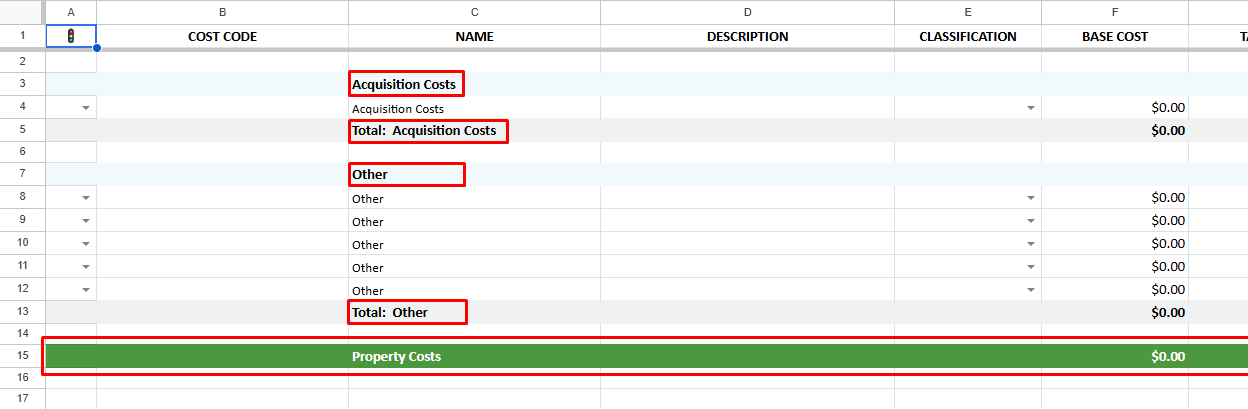
Screenshot taken from ConstructionOnline’s free construction estimate template.
6. Include a ‘READ ME’ file for reference
Although the improvements mentioned in this article are meant to streamline your estimate spreadsheet process, the intended efficiency can easily be lost without proper documentation of instructions–typically called a “READ ME” file. The pre-built formulas and segmented sheets add a layer of complexity that needs to be understood by anyone editing the estimate.
Consider including a “READ ME” file along with the spreadsheet that includes important information like what should be manually edited, what cells are automatically calculated, what cells should not be touched, how data is aggregated, and anything else of importance.
7. Create a budget dashboard using the “Charts” feature
In Excel and Google Sheets, you can aggregate and visualize data into charts and diagrams. This includes bar charts, pie charts, graphs, and more. Depending on how your data is organized and what information you decide to include, you can create charts that show a breakdown of costs by classification (labor, material, equipment, etc.), allowances and overages, and more.
This is not a necessary improvement to make, but it’s recommended if you want to take your spreadsheet estimates to the next level and get a comprehensive overview of project finances.
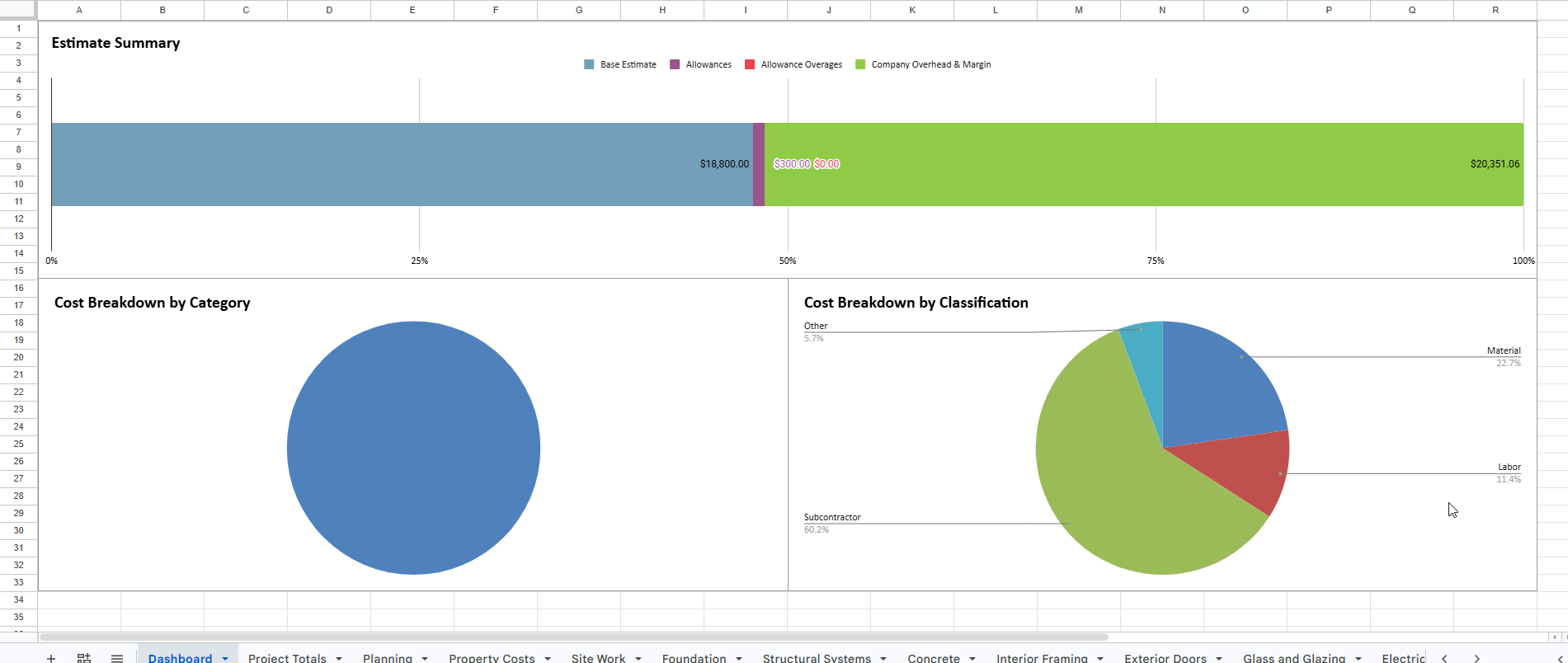
Screenshot taken from ConstructionOnline’s free construction estimate template.
Download Free Pre-Built Estimate Spreadsheet Templates for Increased Accuracy
If you’re looking for an easy-to-use, effective pre-built estimate template equipped with all of the enhancements outlined in this article, our free construction estimate templates were made for construction professionals like you.
Here’s what you’ll get in your download:
- 3 different templates for residential, commercial, and CSI 16 division estimates that can be easily duplicated
- A formatted READ ME file that outlines important information for editing the template, including what fields to edit and how to edit them, what fields are automatically calculated and should not be edited, and a description of each sheet’s purpose.
- Built-in formulas for calculating project totals, including company overhead and profit margin
- A budget dashboard that’s automatically created with your estimate data
FREE Construction Estimate Templates
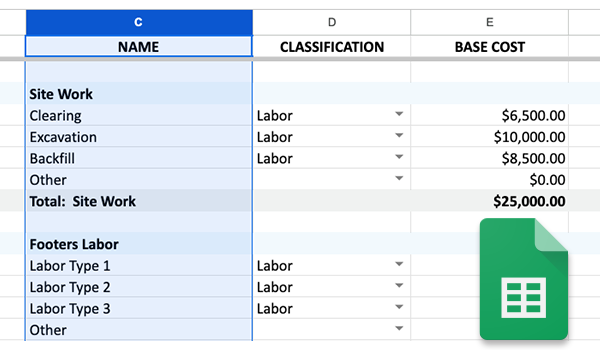
📄Click the button below to download your free construction estimate templates today:

Creating and maintaining construction estimate spreadsheets requires disciplined and informed data entry so that your estimates remain accurate no matter how many edits are made. By implementing these improvements into your spreadsheets, you can make the estimating process more efficient. But even still, there are pros and cons to relying on spreadsheets for construction estimating.
The Pros & Cons of Spreadsheet Estimating
A well-built spreadsheet can make estimating more consistent and organized. The tradeoff is the ongoing work required to keep costs current, protect formulas, and manage revisions. Consider these advantages and limitations when deciding whether spreadsheets fit your estimating process:
ConstructionOnline Pros |
ConstructionOnline Cons |
|
|
Why Most Construction Pros Prefer Estimating Software to Spreadsheets
Preconstruction technology adoption is accelerating: nearly 90% of general contractors now use some kind of estimating software, and 64% use it on every project—up from just 13% in 2022, according to BuiltWorlds' 2026 Preconstruction Benchmarking Report.
There are a few solid reasons for the shift:
- Construction estimating software is purpose-built for managing accurate job estimates, which means many of the tools and functions that require tricky manual updates in spreadsheets are native to estimating software.
- Because each estimate you create in an estimating platform uses the same calculations and functions across the board, one update or fix to the estimating function applies to all estimates at once.
- Estimating software is created with user experience in mind, which means interacting with the software is easier and less laborious than the more technical nature of spreadsheets.
- Formulas and calculations are built into estimating software which means you can’t mess up anything crucial.
Spreadsheets might work fine for estimators and small builders who are just starting out, but as business, teams, and project complexity grows, investing in the right estimating software ensures your estimates remain accurate, error-free, and manageable across all types of projects.
Looking to upgrade from spreadsheets to estimating software? ConstructionOnline’s OnCost Estimating Software was purpose-built to help construction professionals create accurate estimates and bid with confidence. It includes integrated features like cost codes, change orders, and selections; pre-made templates you can duplicate for multiple projects; a user-friendly interface that anyone can learn; financial dashboards and reports that automatically pull data from estimates; and more.
Click the button below to schedule your free dem of ConstructionOnline with a product specialist.

Relevant Estimating & Financial Articles:
- The Complete Guide to Residential Construction Estimating
- The Complete Guide to Commercial Construction Estimating
- Construction Job Costing: An Essential Guide for Contractors & Builders
- The Complete Guide to Construction Financial Reporting
- Estimating Buyer’s Guide
- The Real Cost of Doing Construction with Spreadsheets